

Overview
This guide explains how to configure WiFi settings on following devices to use customer's WiFi network
Supported DTU Models
Only following two models support WiFi configuration: M5_LITE and S3_RELAY
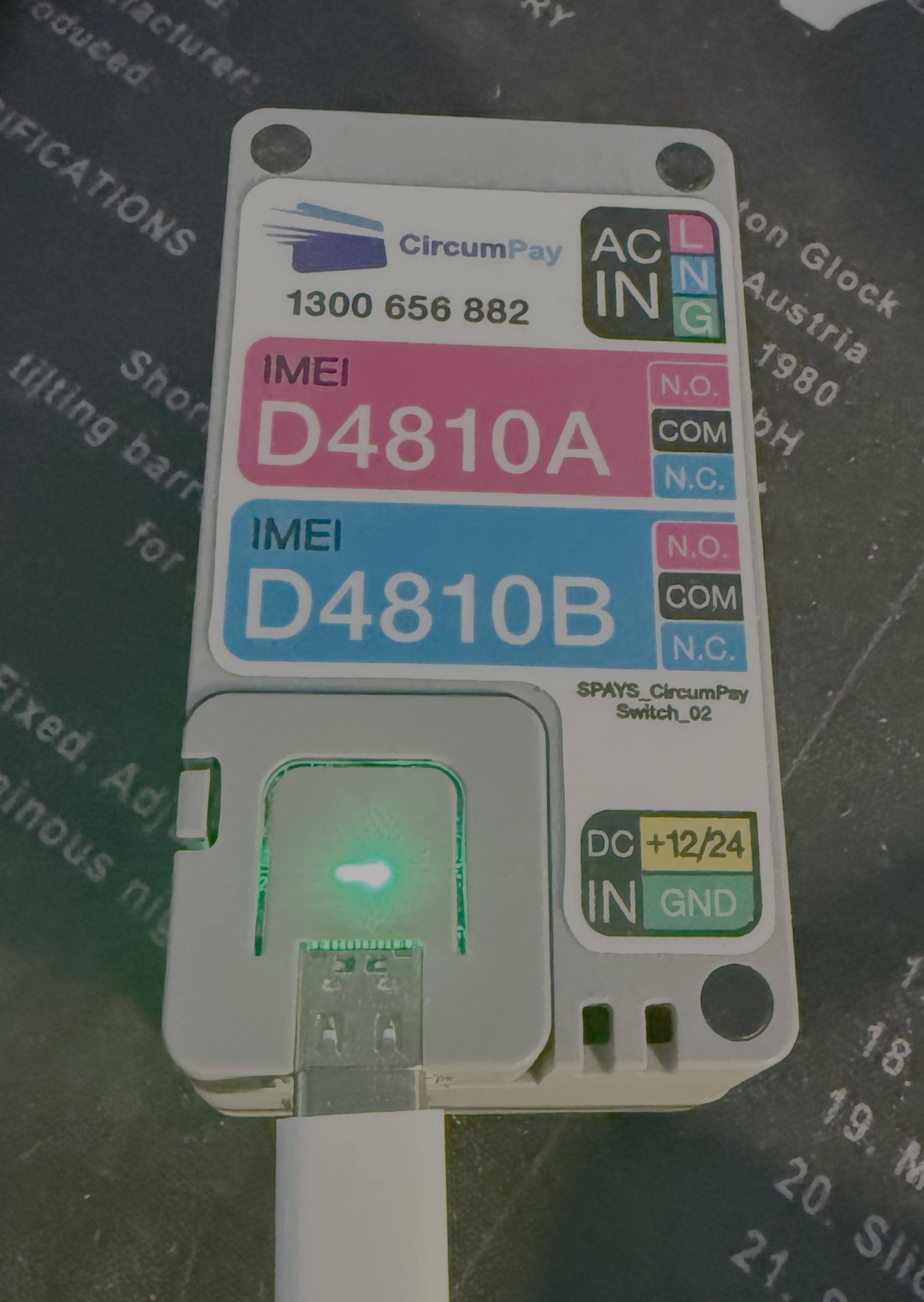
M5_LITE
Standard DTU device
Features:
- Web configuration interface
- Two Relay ports
- 2.4GHz WiFi support
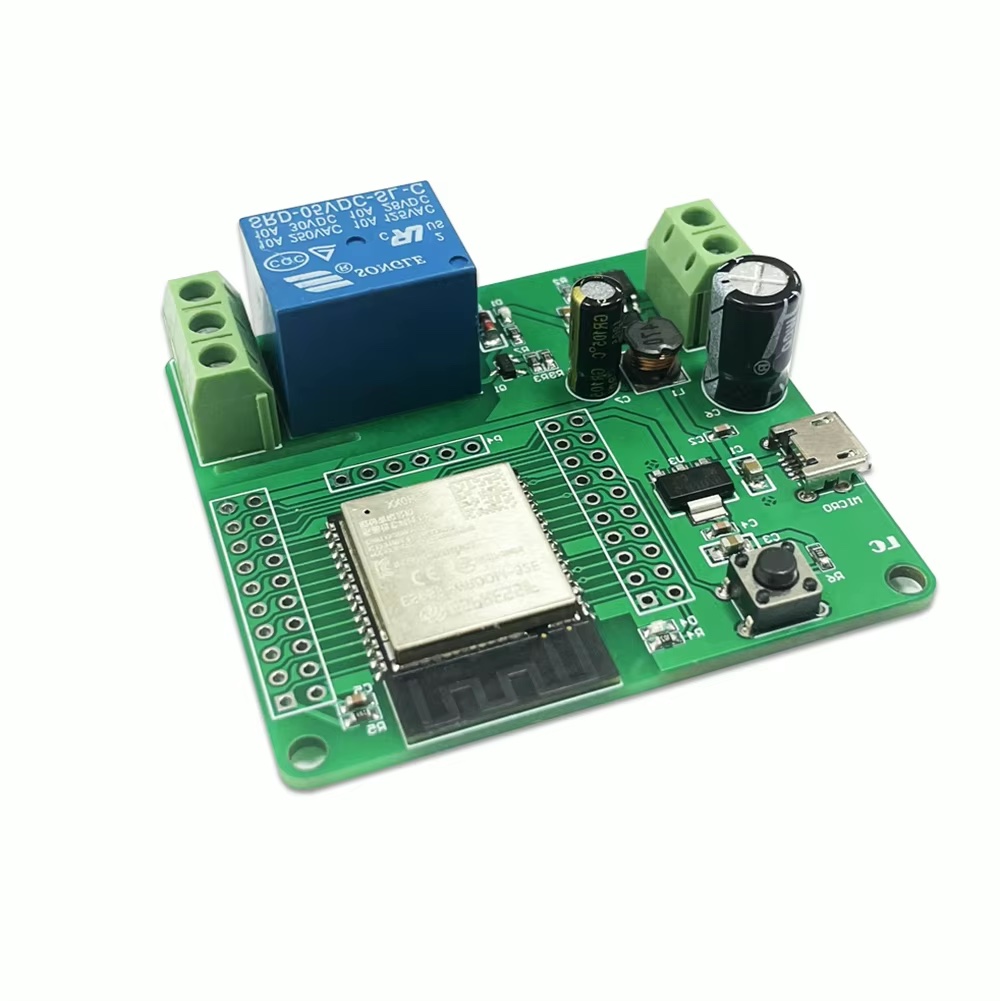
S3_RELAY
Single Relay with following Features:
- Web configuration interface
- One Relay port
- 2.4GHz WiFi support
Automatic AP Mode Entry
The device will automatically enter AP (Access Point) mode under these conditions:
Failed to connect to WiFi ssd circumvend(This is the default WiFi used by DTU) or any pre-configed WiFi network.
When in AP mode:
If DTU failed to connect to WiFi network, it will turn on AP mode and provide WiFi network:
SSID: "DTU_XXXXXXXX" (XXXXXXXX = device IMEI)
Default Password: circumvend19731
AP IP Address: 192.168.123.1
Configuration Steps
How to config
1. Connect to Device WiFi
1): On Mobile phone, go to Settings then WiFi
2): Find the DTU networks in the WiFi list:
SSID: "DTU_XXXXXXXX"
Password: circumvend19731
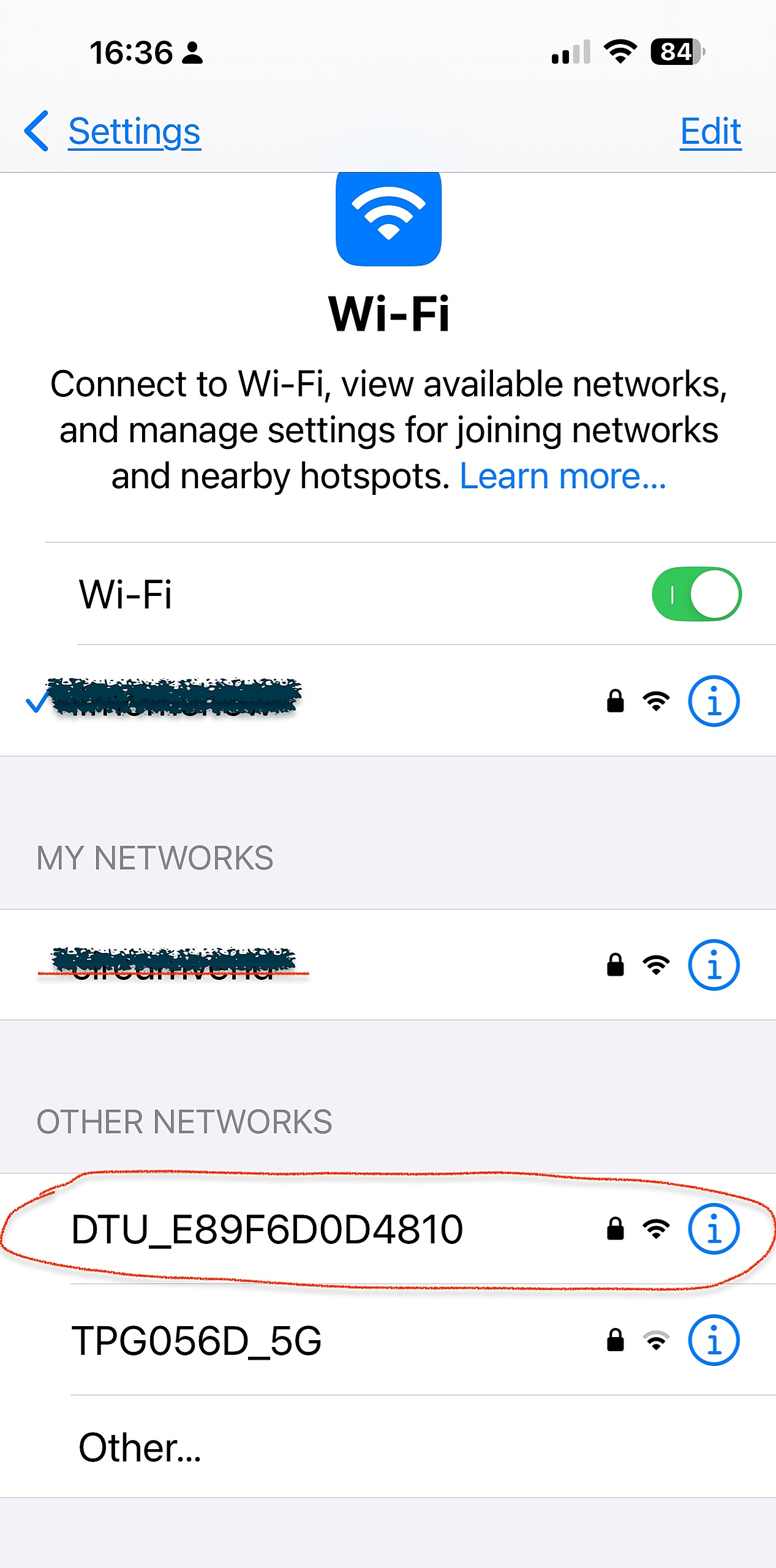
3): Tap to select the network
4): Enter WiFi password: circumvend19731
5): Tap "Join" or "Connect"
2. Access Configuration Interface
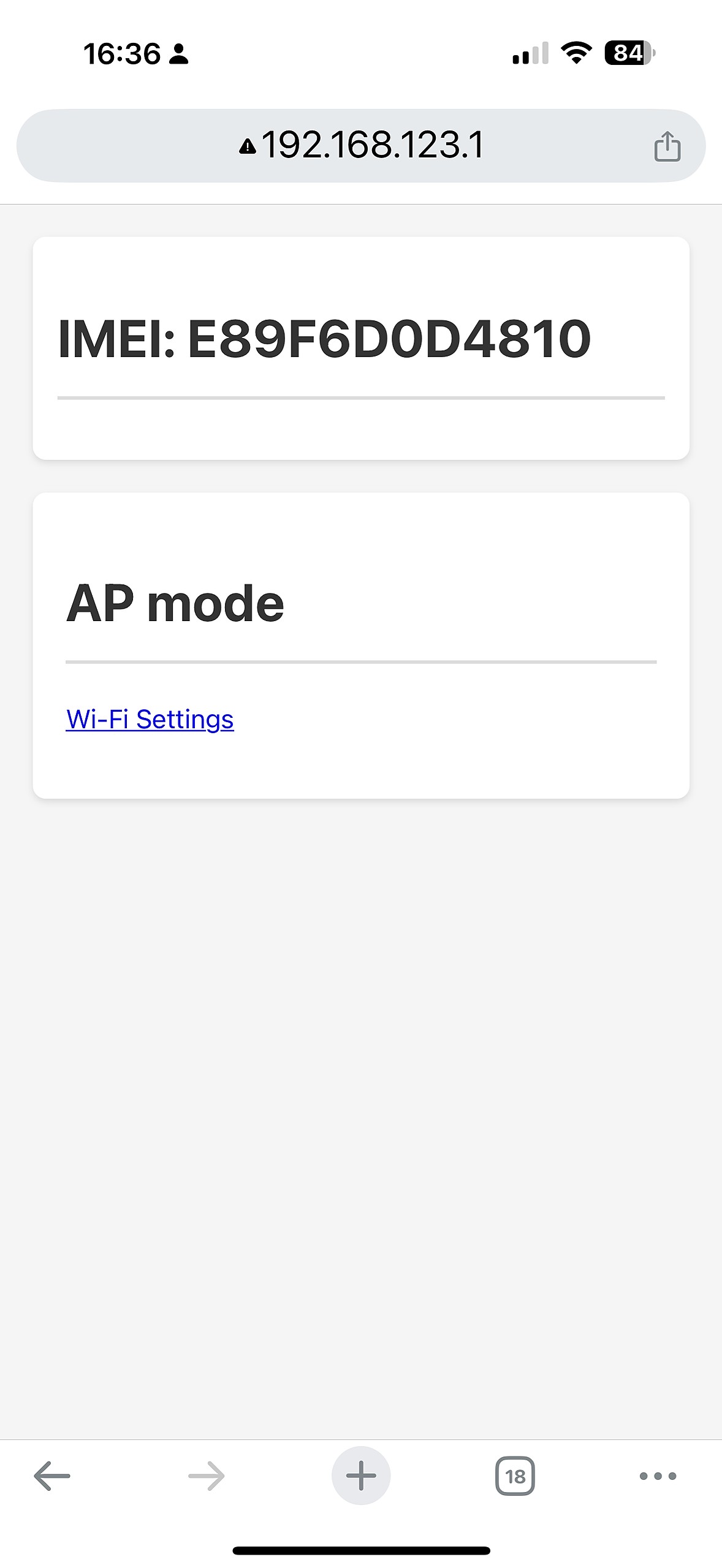
Open a web browser Navigate to 192.168.123.1
Click "Wi-Fi Settings"
Configure WiFi settings: Select the network you want to use from the scanned SSID list, for example: TPG056D
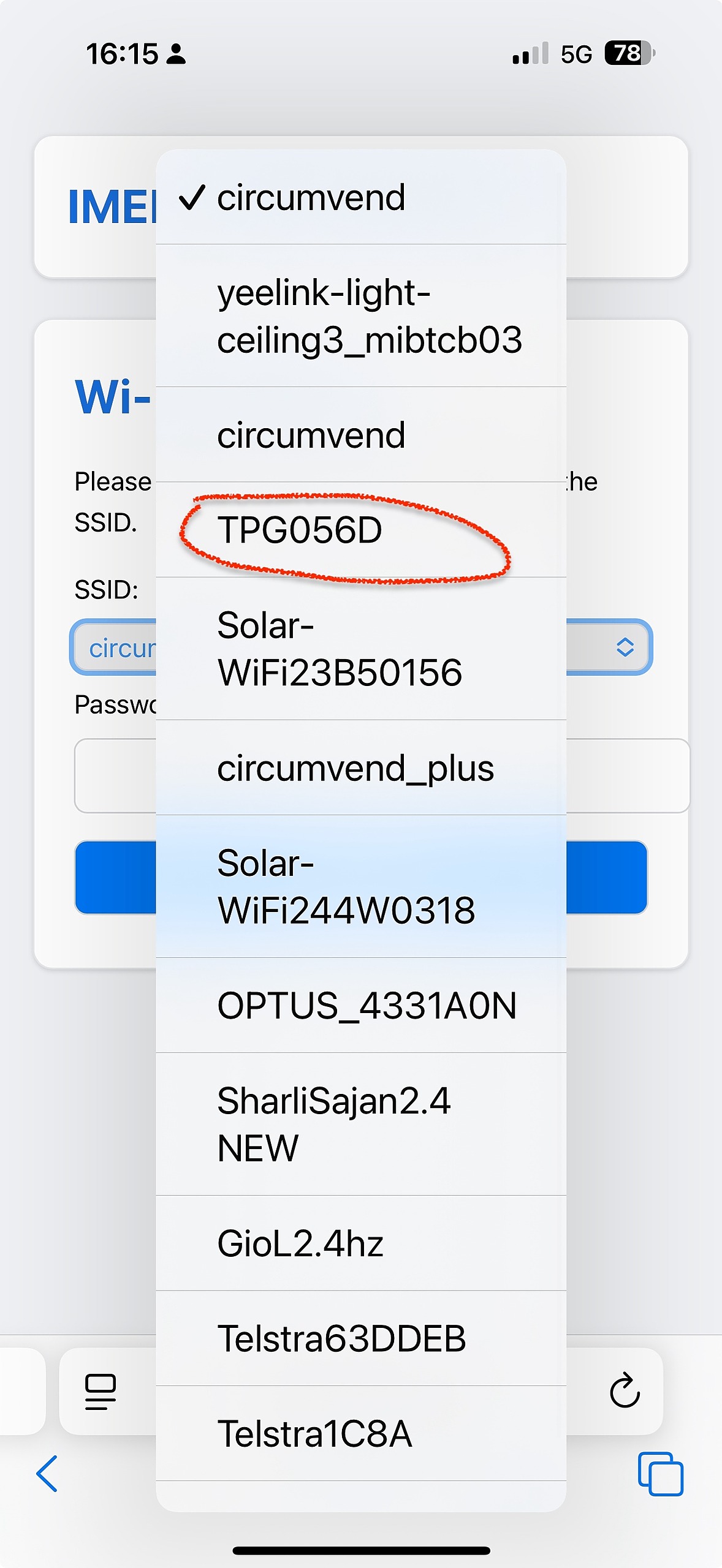
Enter the network password
Submit the form Device will save settings and restart. If everything correct, the DTU will connect to WiFi TPG056D
Troubleshooting
Connection Issues
If connection fails:
It normally caused by following common reasons:
Incorrect password
Network out of range: For WiFi Devices, need 4 bars signal to work stable.
Network band compatibility, currently our DTU only support 2.4GHz WiFi not 5GHz.
Network security type compatibility, make sure your WiFi Router Access Point (AP) Security configured to support WPA/WPA2